
On most Android smartphones, the hotspot menu displays a counter showing how many devices are connected. This counter presents a practical problem: it shows a number, not an identity. A device may appear under a generic name (“android-abc123def”) or show no name at all, depending on the manufacturer and system version.
Connected device with no identifiable name: how to diagnose and respond
An unknown device name in the list of active connections does not automatically mean someone has gained unauthorized access. Some authorized devices (smartwatches, e-readers, children’s tablets) use vague manufacturer IDs. A useful first step is to count your own devices, then compare that total with the hotspot counter.
If the numbers do not match, the most reliable procedure is to turn off hotspot sharing, change the password, then turn it back on. This sequence disconnects all devices. Only those you give the new password to will be able to reconnect.
Identification options vary widely from one manufacturer to another. Motorola’s support documentation explains how to view connected devices, disconnect them individually, and limit connections to authorized devices. On other Android brands, this level of control is not available in the native settings. Before looking for a third-party app, it’s worth checking who is using your hotspot directly in your phone’s settings.
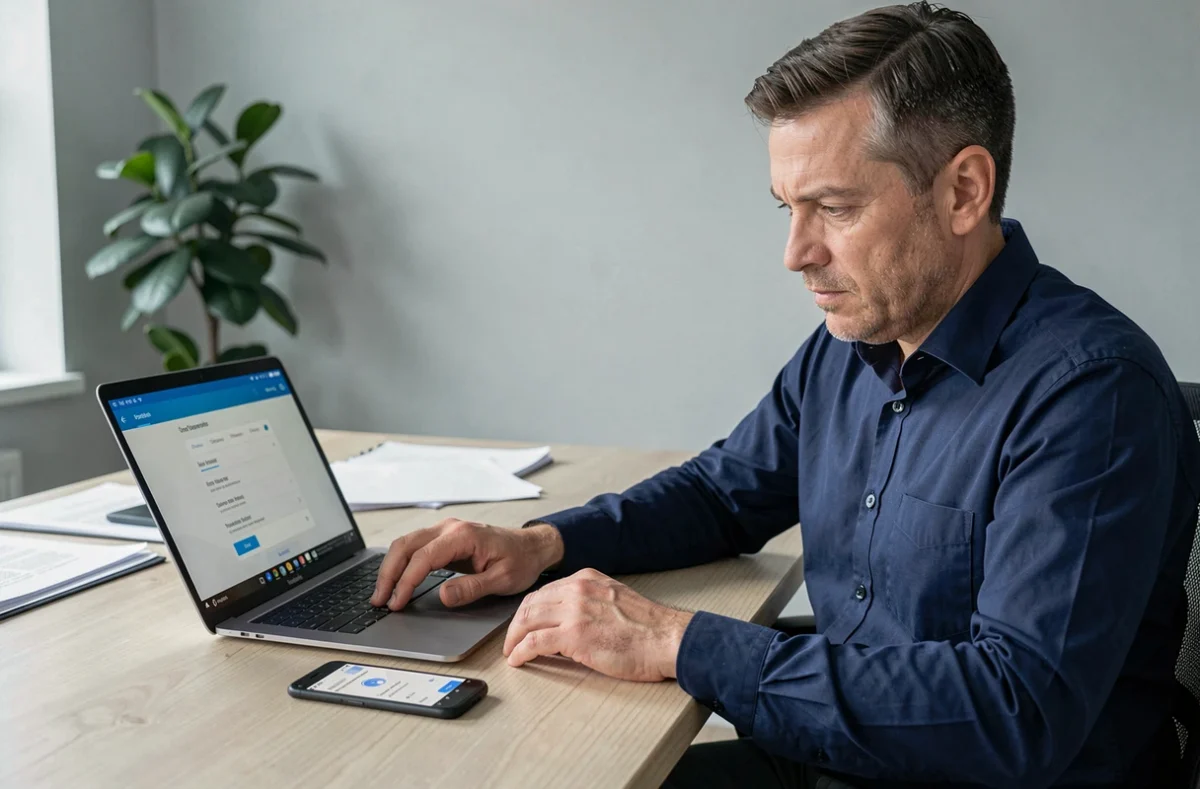
Hotspot access control on Android and iPhone: the real differences
On Android, mobile hotspot settings generally let you choose a security protocol, change the password, and sometimes limit the number of devices that can connect simultaneously. Some manufacturers add whitelisting for authorized devices, allowing you to restrict the hotspot to your own known devices.
On iPhone, Personal Hotspot uses a single password displayed in Settings. There is no detailed list of connected devices like the one available on some Android phones, nor is there device-level filtering. The active connection indicator appears in the status bar (as a blue banner or dot), but it does not show device names.
This difference has a practical consequence: on iPhone, the only real way to kick off a suspicious device is to change the password, then turn Personal Hotspot off and back on. Depending on the manufacturer, Android lets you take more targeted action.
Third-party apps: Fing and Google Home
The Fing app scans the local network and displays MAC addresses, hostnames, and sometimes the manufacturer of each connected device. It works with both mobile hotspots and standard Wi-Fi networks. Its main benefit is identifying a device whose system name is unclear.
Google Home displays devices connected to a Google Wifi or Nest Wifi network, but it does not scan a standard mobile hotspot. Its usefulness in this context is therefore limited to households that share their connection through a Google router.
- Fing identifies devices by MAC address and manufacturer, even when the hotspot only displays a counter.
- Google Home only covers networks managed by a Google router, not built-in phone hotspots.
- No third-party app can disconnect a device from an Android or iPhone hotspot: only changing the password can do that.
USB and Bluetooth tethering: alternatives to a Wi-Fi hotspot
USB tethering eliminates the problem of unidentified connections. Only one device connects physically to the phone, without broadcasting a Wi-Fi network that neighbors or passersby can see. Android documents this option as a direct alternative to a standard hotspot.
Bluetooth offers a compromise: its shorter range (a few meters) reduces the risk of opportunistic connections, but speeds are significantly slower than Wi-Fi. For occasional use with a single device, Bluetooth lets you share your connection without turning on a hotspot.
Both modes have one drawback in common: they only allow one device to connect at a time, making them unsuitable if you need to share your connection with a tablet and a computer simultaneously.
Protecting your mobile data beyond your hotspot password
A strong hotspot password protects access to the local network, not the data that travels over it. Devices connected to your hotspot can each pose a potential risk: an outdated computer or a tablet running obsolete apps could compromise the security of the entire network.
- Keep the operating system up to date on every device you allow to connect.
- Avoid saving sensitive login details (banking, work email) on a device you do not control.
- Change your hotspot password regularly, especially after sharing it with someone temporarily.
- Turn off hotspot sharing as soon as you no longer need it: a disabled hotspot cannot accept connections.
The habit of turning off hotspot sharing after every session remains the simplest and most effective measure. A hotspot that stays on all the time increases your exposure, even with a strong password.
You do not need advanced technical skills to identify an unknown device on your hotspot. Count your devices, compare the total with the counter, and change the password if you have any doubts. Built-in tools are sufficient in most cases, and USB tethering eliminates the problem at its source when only one device needs to connect.